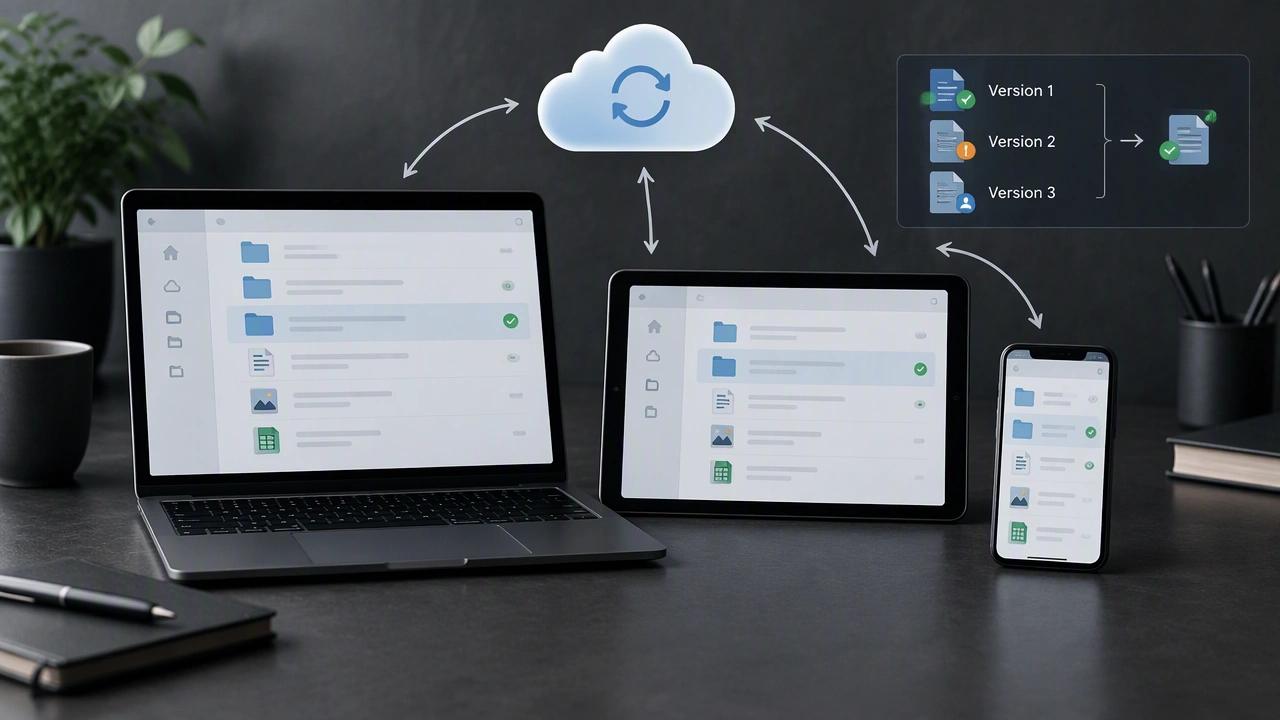
How Cloud Storage Syncs Files Across Devices: Versioning and Conflict Resolution Explained
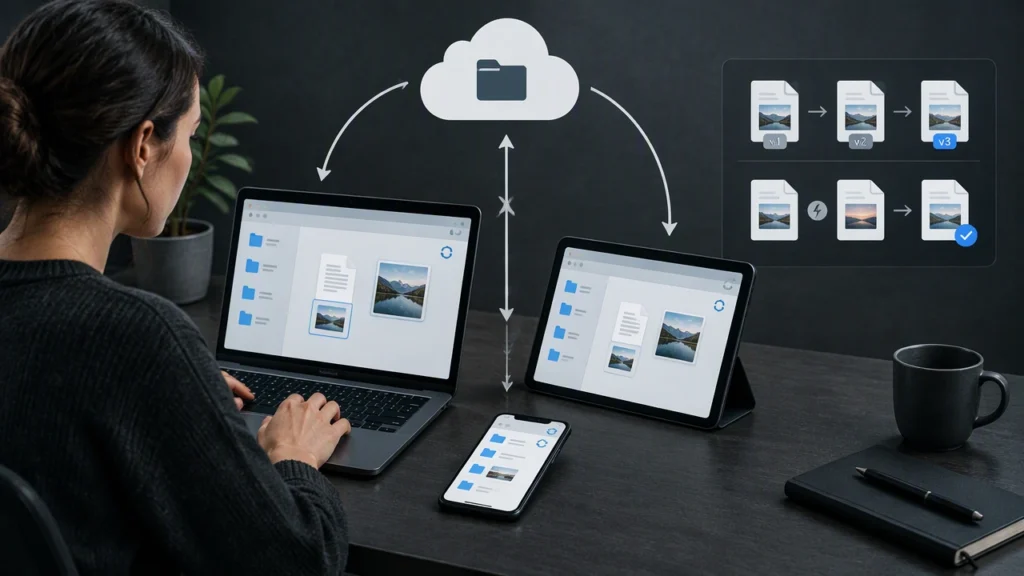
Cloud storage feels simple on the surface: you save a file on a laptop, open it on a phone, and everything matches. Under the hood, though, the system is a carefully coordinated set of services that track changes, move data in small pieces, and decide what happens when two edits collide. If you have ever wondered how does cloud storage sync files across devices, the short answer is that a sync engine watches local folders, records changes, uploads and downloads pieces of data, and applies rules to keep the latest state consistent everywhere.
What cloud storage actually does
At the center of any cloud platform is a sync engine. It is a background service that watches specific folders, detects changes, and communicates with a remote server. The server stores the canonical copy of each file and maintains a timeline of changes. Client apps on your computers and phones run the same sync logic, but each one only knows about its own local files and the metadata it receives from the server.
Cloud storage is not a live mirror of your disk. It is an event-driven system. When you create, edit, move, or delete a file, the client records an event. The sync engine then bundles those events and sends them to the server. The server updates its records, stores new data, and tells other devices what changed. This is why syncing is not instant across all devices at once; each device checks in, pulls updates, and applies them when it can.
How files travel between devices
Modern platforms rarely send entire files for every small edit. Instead, they break files into chunks, often a few megabytes each. Each chunk is compressed, encrypted, and uploaded only if it has changed. The server keeps a content-addressed record, so identical chunks are not stored twice. This design saves bandwidth and makes large files faster to sync.
After uploading, the client sends metadata to the server. Metadata includes the file path, size, modification time, a list of chunk identifiers, and a version number. The server uses this metadata to rebuild the file when another device requests it. When a new device joins, it downloads the current metadata first, then fetches the chunks it needs to reconstruct the latest version locally.
The role of the sync daemon
On desktops and laptops, the sync client usually runs as a daemon or background service. It does three core jobs:
- Watch the local sync folder for changes using file system events or periodic scans.
- Queue changes and upload them in order, retrying when the network is unavailable.
- Pull remote changes and apply them to the local folder, preserving permissions where the operating system allows.
On phones and tablets, the same logic applies, but the app may only sync selected folders to save storage and battery. Some platforms also support on-demand files, where only metadata and a placeholder appear locally until you open the file, at which point the client downloads the actual chunks.
Versioning: how history is preserved
Every time a file changes, the server creates a new version. Old versions are kept for a retention period, depending on your plan and provider settings. Versioning gives you three important benefits:
- Recovery: you can restore a file to an earlier state after accidental edits or deletion.
- Audit: you can see who changed a file and when, if the platform tracks that detail.
- Conflict safety: the server can keep both the old and new version if a true conflict occurs.
Good sync engines also support delta sync, which means only the changed chunks are uploaded. If you edit one paragraph in a large document, the client sends the updated chunk, not the entire file. This reduces upload time and makes version history more granular.
Conflict resolution: when two devices edit the same file
Conflicts happen when two devices change the same file before either one syncs. The sync engine has to decide what to do. Most consumer platforms use a simple rule: the last write wins. The server compares timestamps, accepts the newest version, and keeps the older one as a separate version or a conflict copy. The user can then open both and merge the changes manually.
Some platforms go further. They may use operational transform or conflict-free replicated data types for collaborative documents, but those techniques are more common in editors than in general file sync. For ordinary files, providers stick to chunk-level comparison and versioning. If two users edit different parts of a file, some clients can auto-merge by combining the changed chunks. If they edit the same chunk, the system creates a conflict file to avoid silent data loss.
Clear naming helps here. A file named report.docx might spawn report.conflict-copy.docx so you can see both versions. Good sync clients also show a notification or a status icon so you know a conflict needs attention.
Consistency checks and repair
Sync engines run background checks to keep data consistent. They compare local file hashes with the server record, verify chunk integrity, and re-download pieces that do not match. If a device has been offline for a long time, it performs a full reconciliation on reconnect: it compares its local metadata with the server, applies missing changes, and uploads anything it created while offline.
Server-side, platforms store checksums for each chunk and use them to detect corruption. If a chunk is damaged, the server can pull a clean copy from another device or from its own redundancy layer. This is part of why cloud storage is more resilient than a single external drive.
Practical tips to make sync smoother
- Keep the client updated so you benefit from the latest sync and conflict logic.
- Use a stable connection when moving large files, or pause sync during heavy uploads.
- Enable version history and learn how to restore a previous version in your provider’s app.
- Avoid nested automations that move files rapidly between folders, which can create unnecessary conflicts.
- Check conflict notifications and merge changes promptly to prevent duplicate copies from piling up.
The bottom line
Cloud storage keeps files in sync by combining a local sync daemon, chunked uploads, rich metadata, and server-side versioning. When two devices edit the same file, the platform applies conflict rules to protect your data, often creating a conflict copy so nothing is silently overwritten. Understanding these pieces helps you use cloud platforms more confidently, fix sync issues faster, and rely on version history when mistakes happen.